Extracting Data From a Matrix and an Alternative
已回答
The AgilePoint Matrix control offers a very nice looking, condensed, and easy to set up way to get people to respond to questions. The only problem is that the way the data is held in the Matrix requires some JavaScript to parse. Once it is parsed, it is in text boxes that can be easily handled.
Simple Matrix
In the simplest form, the Matrix will consist of questions and columns of Yes and No. Here is what the screen would look like in this example:
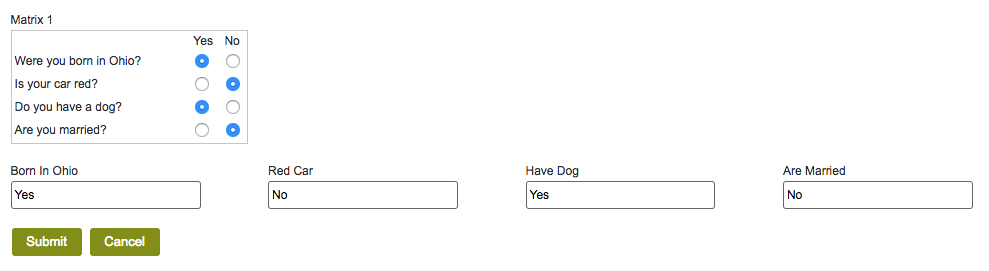 Note that as you click on any of the columns, the text "Yes" or "No" appears in the text boxes. (Of course, in real life, the text boxes will not be visible.)
The JavaScript to accomplish this is as follows:
eFormEvents.onFormLoadComplete = function(){
$("#Matrix1").on("change",function(){
eFormHelper.getFieldValue({fieldId : "Matrix1"},function(res){
if(res.isSuccess)
{
var matrixData = JSON.parse(res.data);
var textBoxToUpdate = ["","BornInOhio","RedCar","HaveDog","AreMarried"];
matrixData.forEach(function(data,ind){
if(ind != 0)
{
var valToDisplay = data.Column[0].Value == "true" ? "Yes" : "No";
var options = {fieldId : textBoxToUpdate[ind],value : valToDisplay};
eFormHelper.setFieldValue(options,function(){
});
}
})
}
})
});
}
As intimidating as this may appear, you can modify it for your application by simply changing Matrix1 to the internal name of your matrix control, and the list of text boxes to the internal names of your text boxes. Note: You must start the list of your text boxes with a null string:
["","BornInOhio","RedCar","HaveDog","AreMarried"];
Generally, tabulating the data or branching according to the data is done on the process side with Condition activities.
More Complex Matrix
If you have a more complex Matrix, you will have to modify the JavaScript, but that can be done by cutting, pasting, and modifying the JavaScript blocks.
This is an example of what this kind of screen might look like.
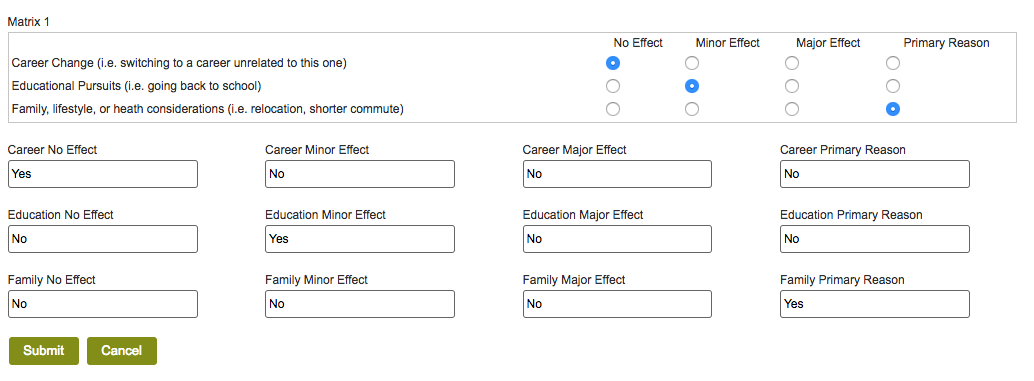 Remember, the text boxes should be made not visible in production. You could also use Hidden controls if you like, but my preference is text boxes so I can see the results before I hide them.
As I said, the JavaScript for this is just an expansion of the earlier JavaScript:
eFormEvents.onFormLoadComplete = function(){
$("#Matrix1").on("change",function(){
eFormHelper.getFieldValue({fieldId : "Matrix1"},function(res){
if(res.isSuccess)
{
var matrixData = JSON.parse(res.data);
var textBoxToUpdate = ["","CareerNoEffect","EducationNoEffect","FamilyNoEffect"];
matrixData.forEach(function(data,ind){
if(ind != 0)
{
var valToDisplay = data.Column[0].Value == "true" ? "Yes" : "No";
var options = {fieldId : textBoxToUpdate[ind],value : valToDisplay};
eFormHelper.setFieldValue(options,function(){
});
}
})
}
})
});
$("#Matrix1").on("change",function(){
eFormHelper.getFieldValue({fieldId : "Matrix1"},function(res){
if(res.isSuccess)
{
var matrixData = JSON.parse(res.data);
var textBoxToUpdate = ["","CareerMinorEffect","EducationMinorEffect","FamilyMinorEffect"];
matrixData.forEach(function(data,ind){
if(ind != 0)
{
var valToDisplay = data.Column[1].Value == "true" ? "Yes" : "No";
var options = {fieldId : textBoxToUpdate[ind],value : valToDisplay};
eFormHelper.setFieldValue(options,function(){
});
}
})
}
})
});
$("#Matrix1").on("change",function(){
eFormHelper.getFieldValue({fieldId : "Matrix1"},function(res){
if(res.isSuccess)
{
var matrixData = JSON.parse(res.data);
var textBoxToUpdate = ["","CareerMajorEffect","EducationMajorEffect","FamilyMajorEffect"];
matrixData.forEach(function(data,ind){
if(ind != 0)
{
var valToDisplay = data.Column[2].Value == "true" ? "Yes" : "No";
var options = {fieldId : textBoxToUpdate[ind],value : valToDisplay};
eFormHelper.setFieldValue(options,function(){
});
}
})
}
})
});
$("#Matrix1").on("change",function(){
eFormHelper.getFieldValue({fieldId : "Matrix1"},function(res){
if(res.isSuccess)
{
var matrixData = JSON.parse(res.data);
var textBoxToUpdate = ["","CareerPrimaryReason","EducationPrimaryReason","FamilyPrimaryReason"];
matrixData.forEach(function(data,ind){
if(ind != 0)
{
var valToDisplay = data.Column[3].Value == "true" ? "Yes" : "No";
var options = {fieldId : textBoxToUpdate[ind],value : valToDisplay};
eFormHelper.setFieldValue(options,function(){
});
}
})
}
})
});
}
With these two examples, you should be well on your way to making the Matrix control a regular and elegant part of your applications.
Using Rating Control Instead of Matrix
In AgilePoint, there are often several ways to accomplish the same task. An alternative to the Matrix is several using several Rating controls. These produce a numeric result without any JavaScript. The example of this would be:
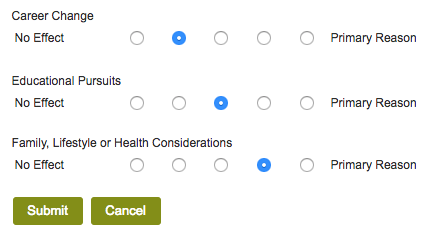 In this example, Career Change would have a value of 2, Educational Pursuits would have a value of 3, and Family, Lifestyle or Health Considerations would have a value of 4.
Whatever control you decide to use, it is great to know that you can give your uses a very attractive screen in a matter of minutes.
请先登录再写评论。
评论
0 条评论