Using the SAVE Action on a Start Form
We have a few applications that have a lot of fields that need to be populated on the Start Form before the user can submit the form and start the workflow. We have been hearing from many of our users that often they do not have all the information available in one sitting to fill out all the fields to start the process.
I know that you can enable a "Save" button on a Start Form which would allow the user to save the data that they have entered so far. The Save button then saves the form and the next time the user launches the application it will ask them if they want to continue filling out the form.
But my understanding is that when the user is asked if they want to continue, if they answer No, they will lose the data. So in effect you can only save one Start Form per application. Has anyone found a good solution to this problem that would allow users to save multiple Start Forms in a "draft" mode so that they can come back to them later to finish and submit them?
I read a post from a couple of years ago where a solution was mentioned where you add a radio button on the screen asking the user if they want to submit the form or save it for later. If they answer "save it for later", the process loops back around and creates a task for the user in their inbox for the process. I have proposed this idea to some of the users and they were not very receptive of it. They did not like the idea of having tasks in their inbox.
Has AgilePoint considered enhancing the functionality of being able to save multiple Start Forms and then when the user launches the application again, it displays a list of the forms that have been saved allowing them to pick one to work on?
-

I created a simple proof-of-concept app using the idea of having a radio button that says if you are ready to start the process or just save it as a draft. Then if the user says "save as draft", the process loops back around to the Start Task, creating a task in their inbox that they can come back to later.
They are actually warming up to the idea.
So now my question is:
If the Start Form has a large number of Mandatory fields, I only want to enforce the mandatory field rules if they are actually starting the process. If they are saving the form in draft mode, I don't want to force them to complete all the mandatory fields.
Is there an easy way to bypass the check of mandatory fields when submitting a form?
-

Hi Loren ,
You can enforce or remove mandatory using Rule Builder.
In Rule Builder check the value of the radio button field and if it's "Save As Draft" , then use the Set As Not Mandatory action , where you can select the Control Name which you want to remove the mandatory.
Regards,
AgilePoint NX Support
-

Hi Loren,
you can also make use of the rule builder for the whole form for "Validation on Submit" to validate fields with conditions. For your use case we normally set the radio button for "saving as draft" to be empty and then with rules set fields as mandatory if one chooses to send the form instead of saving it as draft. Then you will have only one place where you define mandatory/not mandatory fields, which is then easier to maintain in the future.
Regards,
Alexey
-
Alexy,
I see what you are saying. But does that mean that you don't flag the individual fields as mandatory when creating the form? I'm not sure I like that idea because then the users don't see the red asterisk indicating which fields are mandatory. I suppose that the fields could be marked as mandatory and then in the "Validation on Submit" rules, if they choose save as draft, set all the mandatory fields to "not mandatory".
Either way, I still think it creates a maintenance headache because you have to remember anytime you add a mandatory field to the form, you also have to add a rule to set the new field as not mandatory when you save as draft. I was hoping there would be someway to just tell the system to bypass the check for mandatory fields.
Loren
-
Hi Loren,
you can also set the action to submit per default. Then all neccessary fields will be marked as mandatory. And yes, you won't individually set mandatory parameters and do it in the rule builder. It is maintenance headache indeed, but there is no possibility out of the box for bypassing all validation rules.
Regards,
Alexey
-
The more I have looked at this, the less feasible I think it is if you have a large number of mandatory fields. Also, some of our start forms have sections (tabs) and currently, the form won't let you advance to the next tab unless all mandatory fields are filled out. To make that kind of form work, you would have to not mark any fields as mandatory when designing the form and then mark them all as mandatory when submitting via a "Before Submit" rule. The users would hate that!
I think I would like to submit this as an enhancement request for AgilePoint. There either needs to be some way to indicate that you don't want to enforce the mandatory field rules on Submit action. Or there needs to be a way to save more than one start form in draft mode for an application.
My vote would be the second option. Back when we were evaluating Workflow software packages, there was one other package that we were looking at (I won't name it here) that had the option to save multiple drafts of a process. It was one of the few advantages that software had over AgilePoint.
-
Thought I would resurrect this old thread from 3 years ago about using a "Save" action button on a start form. If you read back through the original posts, you will see that AgilePoint has always allowed you to put a Save button on a Start form. The old behavior was that if the user saved the start form, the next time they launched that application, the system would ask them if they wanted to continue the form they were previously filling out. The problem was, if the user answered "No", then the data they entered on the original form was lost and could not be recovered later. This led to my suggestion of:
Has AgilePoint considered enhancing the functionality of being able to save multiple Start Forms and then when the user launches the application again, it displays a list of the forms that have been saved allowing them to pick one to work on?
Well, I discovered by accident today, it does appear that AgilePoint has implemented this functionality! Not sure when but it is there. Now, if you have a Save button on a Start form and the user clicks the Save button, the system prompts the user to save the draft:
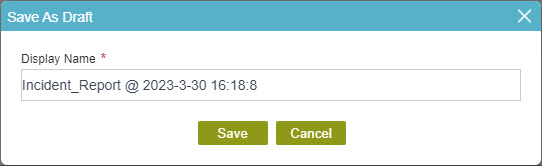
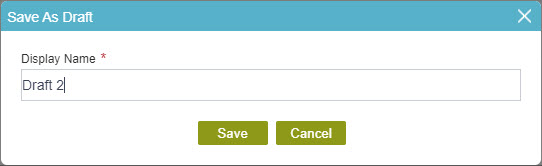
You can then override the default Display Name with a custom name of your own:
After saving your draft, if you then launch that application again, you will then get a list of all the saved drafts that you have and you can select one to continue working on it:
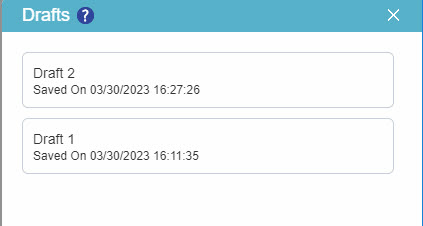
So kudos to AgilePoint for implementing this feature. Again, I'm not sure which release this was in.
Now for the caveat:
The form that we were working with, when we discovered the "draft" feature, has many fields that have rules to display other fields. For example, there is a question that asks the user if the incident occurred on a specific job. If they answer "Yes" to that question, then a drop-down list appears for them to select the job it occurred on. Because this was a Start form, I did not enable the option to "execute rules on form load" on my field-level rules because it did not seem relevant for a Start form. Because of that, I see that if the user selects a draft form to continue working on, the field level rules do not execute. So in my example above, if the user had answered "Yes" to the job question, the drop-down list for the selected job does not display.
I'm curious if anyone else has used the "Save as Draft" feature and if they run into the rule problem?
サインインしてコメントを残してください。
コメント
8件のコメント